Example: Changing skin and fonts for Hyper Store
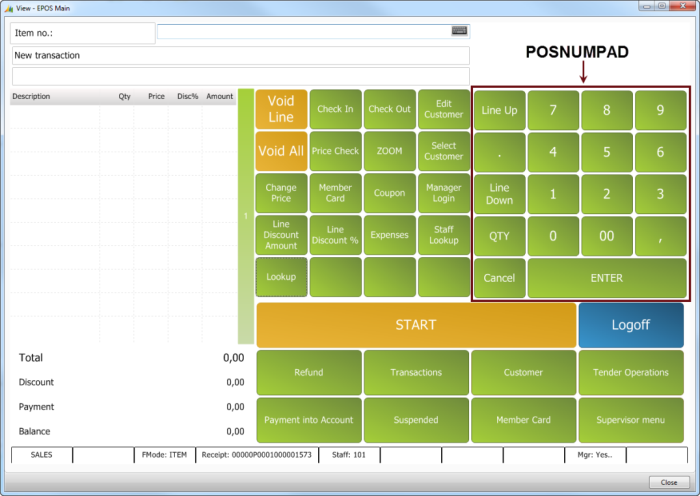
In this example you will look at the Hyper POS in the Demo Data Company and do some changes for the POSNUMPAD:
- Look at the POSNUMPAD menu.
- Change one Skin and one Font to understand better how this works.
The Hyper POS:
The menu attributes for the POSNUMPAD menu:
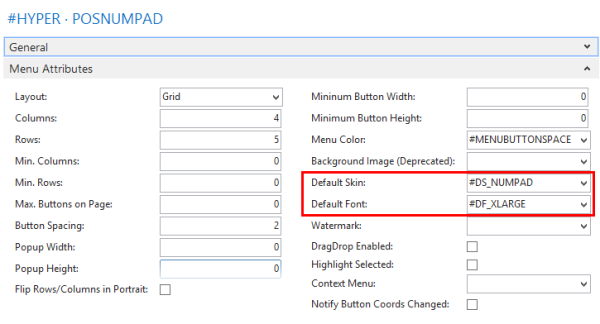
- The Skin and Font in the Menu Attributes control the skin and font for the buttons in this menu unless the menu lines have specific values or the POS commands setup control it.
- The Button Skin is #DS_NUMPAD which has green skin color.
- The Button Font is #DF_XLARGE with Font Size 18 and white font color. This explains why the letters for the POSNUMPAD buttons are bigger than other buttons, for example the Check In button. The Check In button has no font value so it uses the ##DEFAULT font which has font size 12.
- Some buttons do not have as big a font size as Line Up and Qty.
Here are the menu lines for the POSNUMPAD menu:
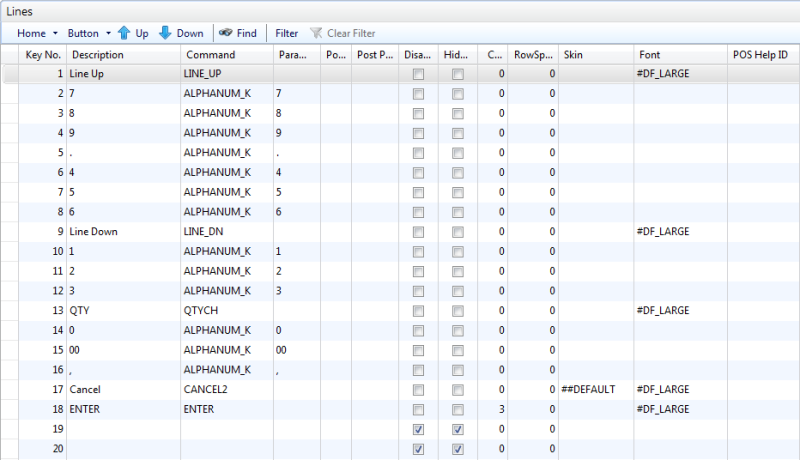
- A few menu lines have a specific font, #DF_LARGE, which has Font Size 16 and white font color.
- The Cancel line has skin ##DEFAULT. Skin #DEFAULT is green, but Command CANCEL is set with skin #CO_CANCEL, which has a yellow skin color.
Next you change the skin and font lines. Notice how the POS changes:
- Open Style Profile Hyper which is the active style profile in this example.
- Change the Skin line #DS_NUMPAD to have a yellow color for Back Color.

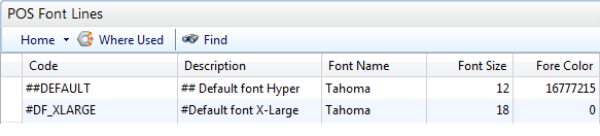
- Change the font line #DF_XLARGE to have the Fore Color as black:
- Load the POS again.
The Hyper POS after the change:
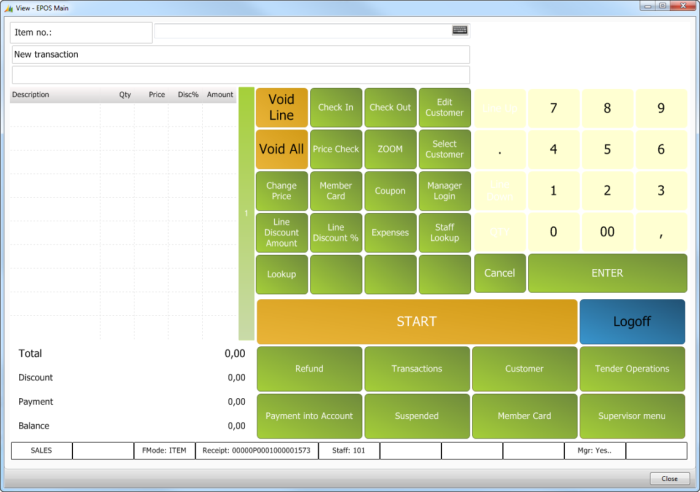
- The POSNUMPAD buttons are now yellow except Cancel and Enter.
- Enter and Cancel are still green, because the commands for these buttons have a specific skin set up with the Commands.
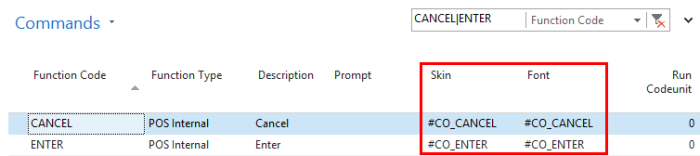
- Most of the buttons in POSNUMPAD have a black text as the font ##DF_LARGE is defined now apart from buttons which have other font values in the menu lines or with the commands.
- Other buttons, for example Void Line and Logoff are black because they are set up with font ##DF_LARGE.
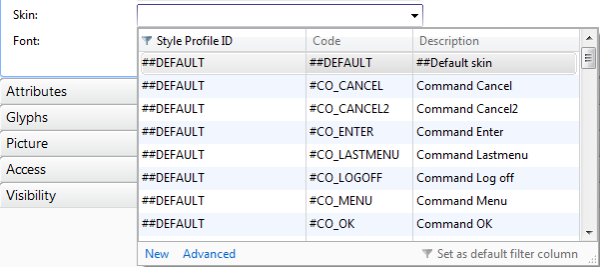
Tip: When you select a value for skin and font, you can select the line manually or from the list.